 Contact Us



PIXERA hub is a powerful tool that allows you to easily network and navigate a Multiclient setup, keep track of your version installs, manage and customize your server settings, and monitor performance. You can download the latest version of Hub here. If using a Multiclient setup, you will see your other machines in the left-hand column.
Dashboard
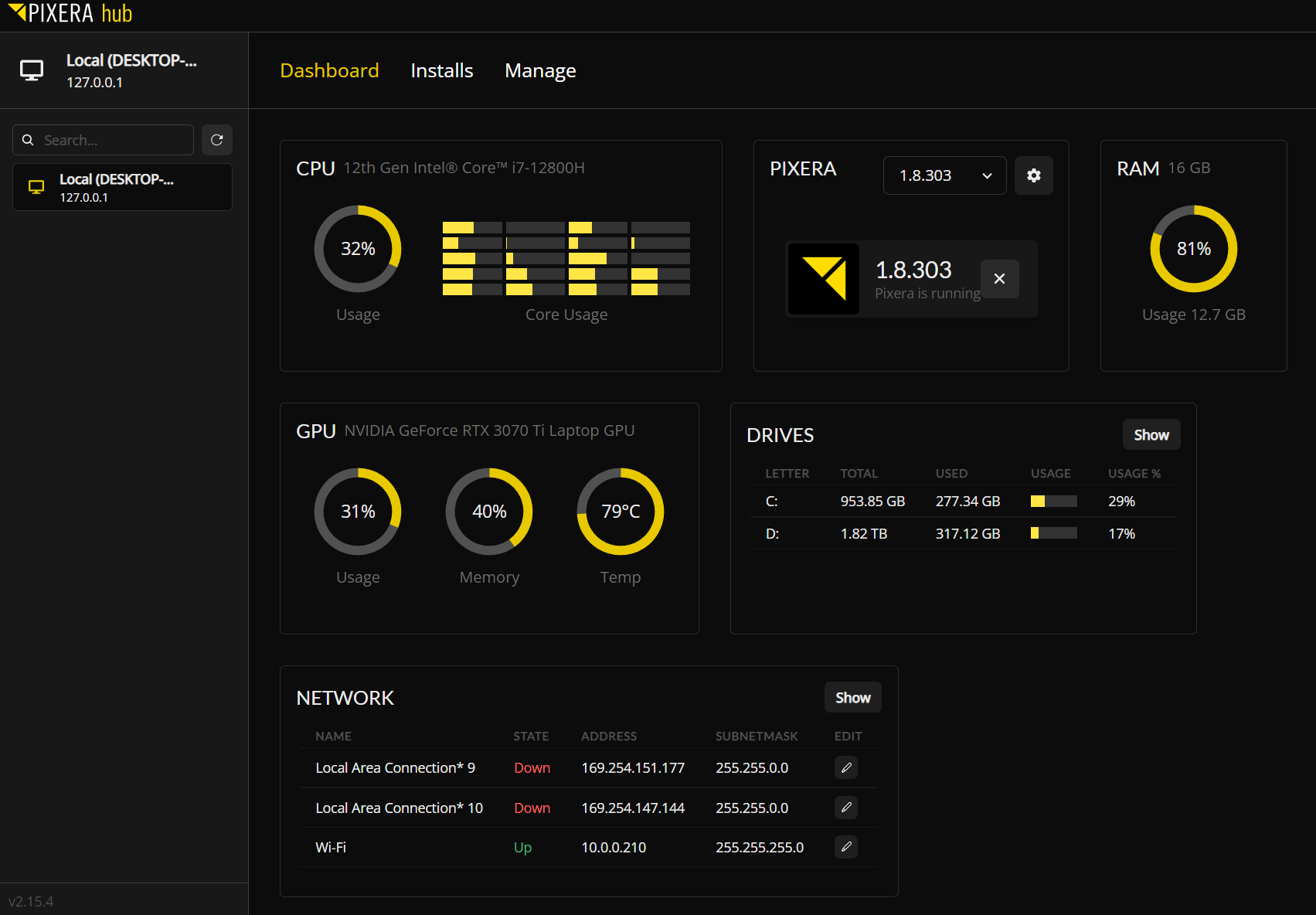
The Dashboard tab allows you to monitor server performance, including GPU, CPU, and RAM usage. It also displays your current PIXERA version, storage drives, and network interfaces.
Note!
Note that the stats are only visible when Enable Performance Monitoring is enabled in the Manage tab.
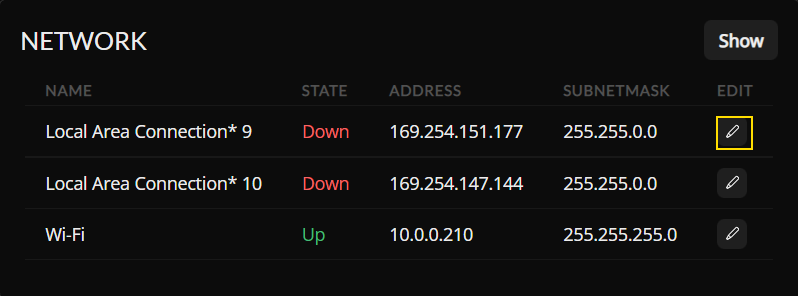
Access and configure all network properties directly through the Dashboard tab.
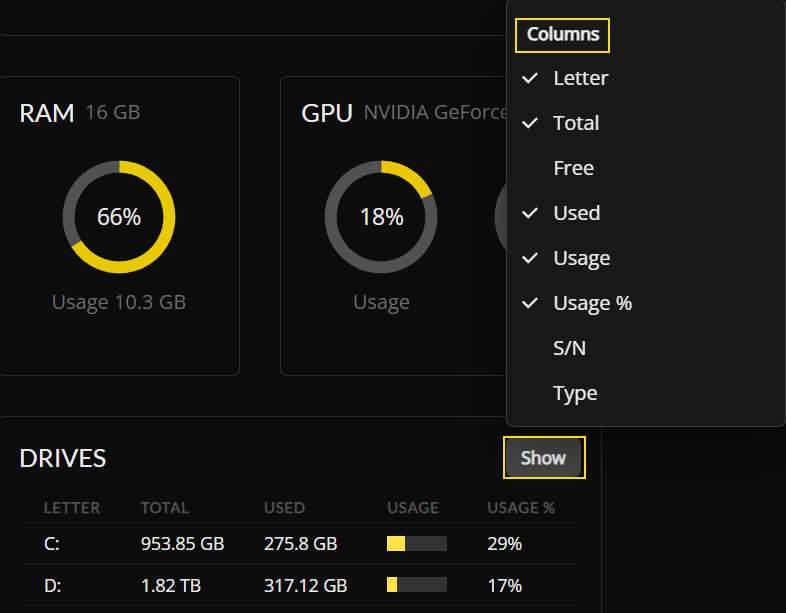
In the Network and Drives sections, you will see a button in the top right named "Show." Here you can customize the information you see:
Installs
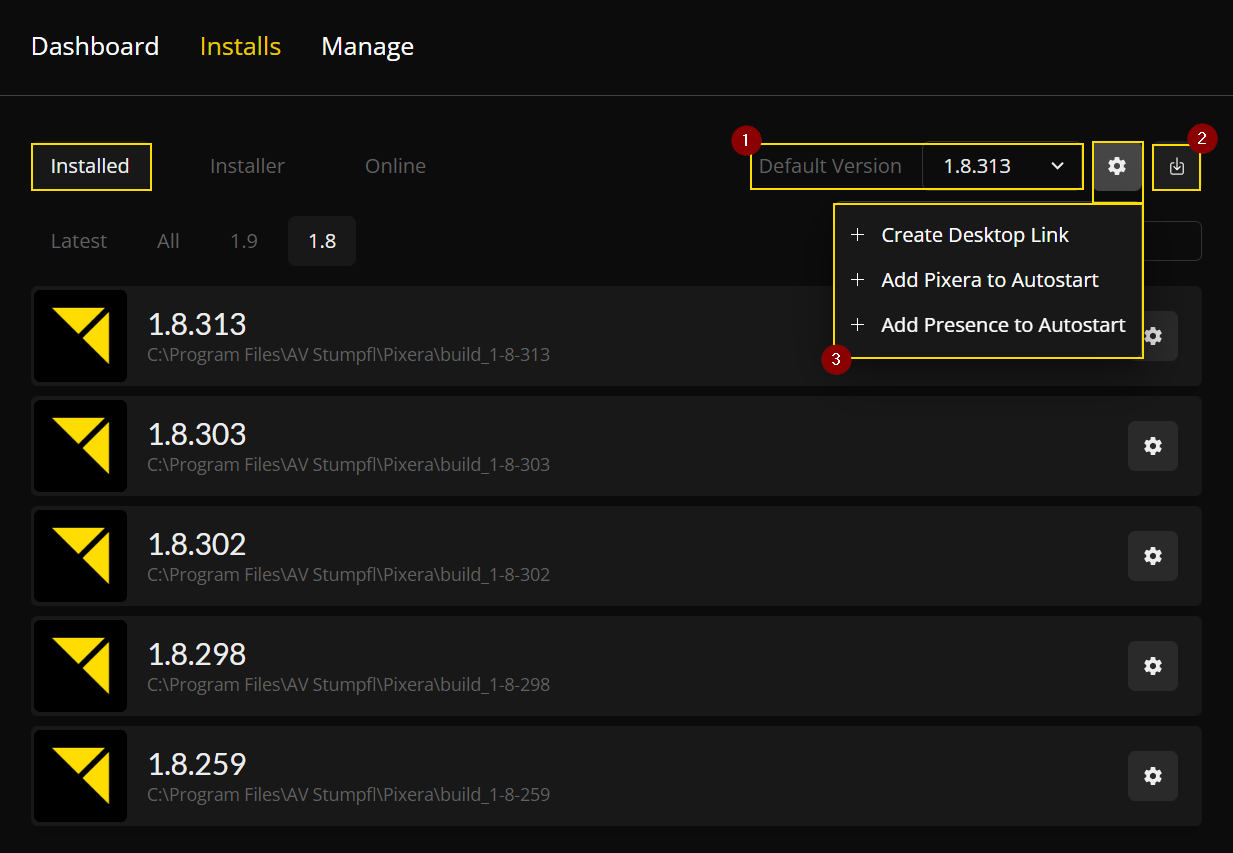
The Installs tab is divided into three groups. "Installed" shows all versions that have been installed and are ready to use. You can set your default version that you would like PIXERA to open to upon startup
- You can update your license code files directly from your inserted dongle with the click of a button.
- You can set PIXERA and Presence proxies to AutoStart.
- Links directly to the changelog of the latest PIXERA release.
- Keep in mind PIXERA will always open to the version selected, so if you install a new version you must change your AutoStart settings.
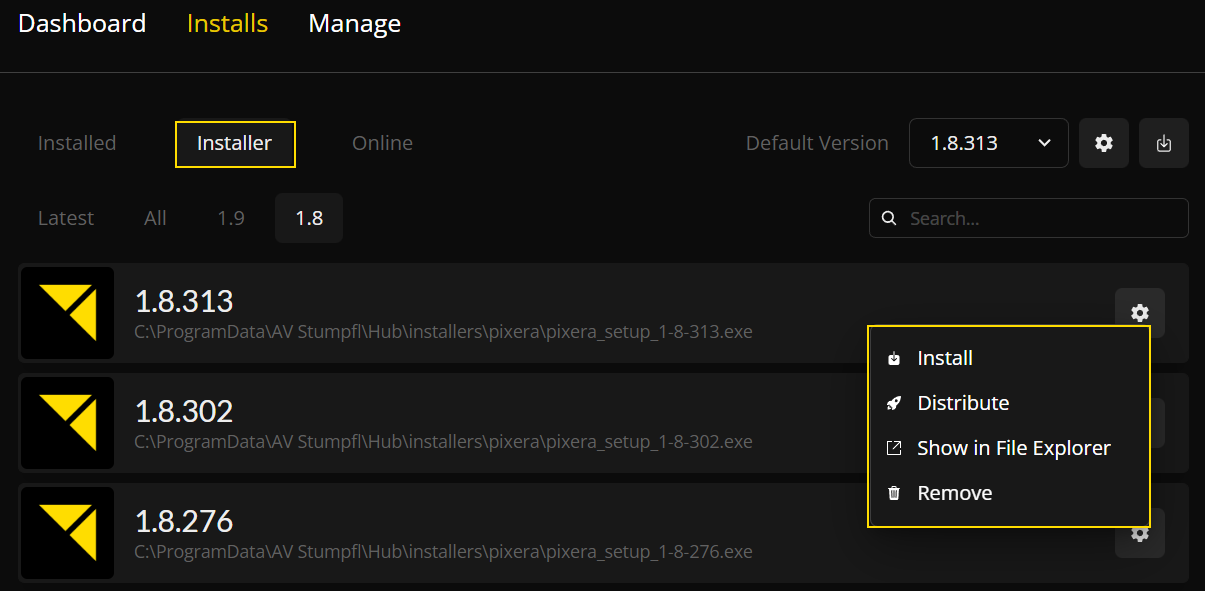
Under "Installer," you will see listed the installers you have available on your computer. These live in the “ProgramData\AV Stumpfl\hub\installer\PIXERA” folder. Click on the settings wheel to the right, and you can install your desired version and distribute it to your clients.
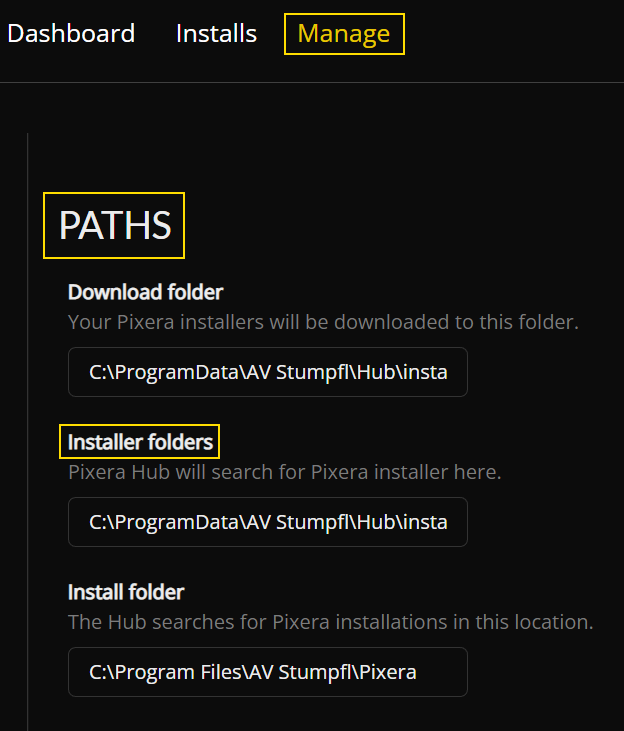
If you do not see your installers here, double check that your file path is set correctly in the Manage tab, under Path:
The Online section displays all available installations as long as your system is connected to the internet.

RC and Intermediate versions are not shown when the filter is set to “Latest.” If you are looking for RC or Intermediate versions, you need to filter by RC, Intermediate, or All.
You can also see those versions when filtering by a specific version number (e.g., 25.2 or 25.1).

When clicking the settings icon, you get three options:
Download:
The Pixera installer will be placed in the Installer section. You have to install the file manually from there.
Download & Install:
The selected Pixera version will be downloaded and installed automatically.
Download in Browser:
An .exe file will be downloaded via your browser. You can find it in your download folder. It will not appear in the Pixera Hub—neither in the installer section nor as an installed version.

PIXERA Intermediate Versions
With each release we aim to provide you with a version of PIXERA that is both feature-rich as well as well as highly reliable.
But development work on PIXERA is always ongoing. This leads to a series of intermediate versions that contain bug fixes and feature improvements. In the past, even if an intermediate version had a fix for an issue relevant to a particular project, there was no direct way to access the fix.
To remedy this we are introducing the intermediate version feature to PIXERA hub. It lets you download the newest intermediate version and use it as an alternative to the current release. Since these builds are not as fully tested as the release please do take extra care when preparing your project. Because they generally contain only incremental changes, they tend to be comparable in terms of reliability, but we recommend that you check your concrete use cases for behavior that diverges from the release.
We hope that, by giving users more options to choose the best version of PIXERA in every situation, we can help more projects succeed even as PIXERA continually evolves!
Manage
Under this tab you will find a multitude of options for customizing your server settings to best suit your project.
General contains system settings for PIXERA Hub, including your machine name, options to enable or disable performance monitoring, and settings to allow remote shutdown.

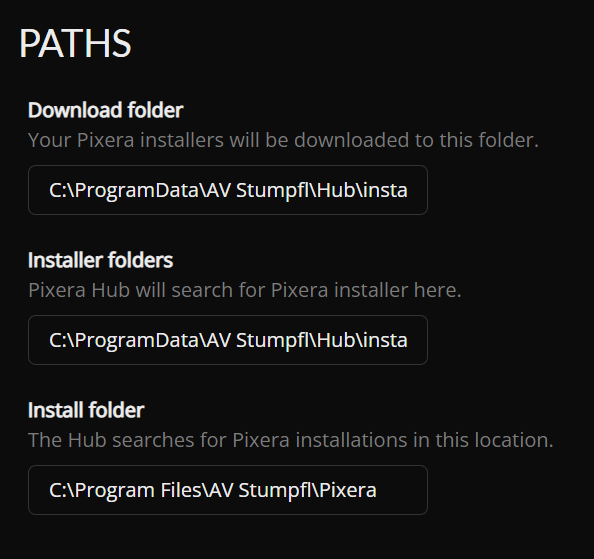
The Paths section allows you to configure directory locations for your installers, which are located in the ProgramData folder by default, while installed PIXERA versions are stored in the ProgramFiles folder. If your installers or installed versions fail to appear in Hub, verify that these file paths are defined correctly.
Startup provides options for launching PIXERA Hub automatically when your system boots up.

You can check for version updates, and switch between Stable and Beta versions here:
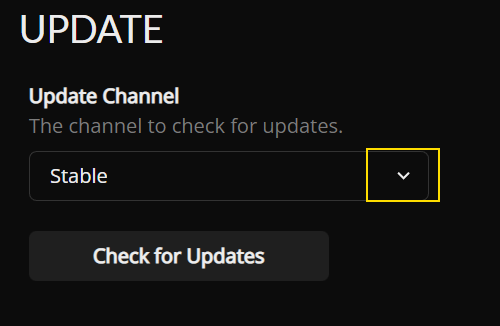
In the Discovery section you can set which connections Hub will search for other PIXERA machines on. The default setting is "All," but you can disable this and check/uncheck specific connections. Remember, you can edit your Networks in the Dashboard tab.

Autostart
The AutoStart section is where you can find all your AutoStart preferences. You can edit their settings by clicking the pencil button on the right-hand side, or remove them with the trash icon. You can manually add AutoStart commands with the plus button.

More information can be found here.
Services
The Services section refers to your Windows settings. We recommend having Windows Update disabled, as a change in Windows version also requires a license code change. For this you would need to contact a representative at PIXERA.
Additionally, it allows you to enable services such as the Hotkey Agent for PIXERA system shortcuts, the Fan Control Agent, and the Overlay, as well as configure the VNC Server settings.
Agents
The Hotkey Agent enables PIXERA/Windows specific keyboard shortcuts. The Fan Control Agent must be active if you want to manually adjust your fan speed.

Overlay

Enabling the Overlay activates the Overlay Infobox, which displays the device name, connected displays, active PIXERA version, and image version.
Windows

Hub Service
Services used by PIXERA Hub can be restarted manually by clicking the reload icon next to them.

VNC
VNC allows you to connect to other servers, provided that the VNC Server is enabled and configured correctly.

Instructions on how to properly set up the VNC Server can be found Install UltraVNC for PIXERA Hub .
Network
The Network section allows you to see all current Interfaces on this server. You can modify these networks from here as well as choose what Drives on the system are Shared for outside access.

Displays
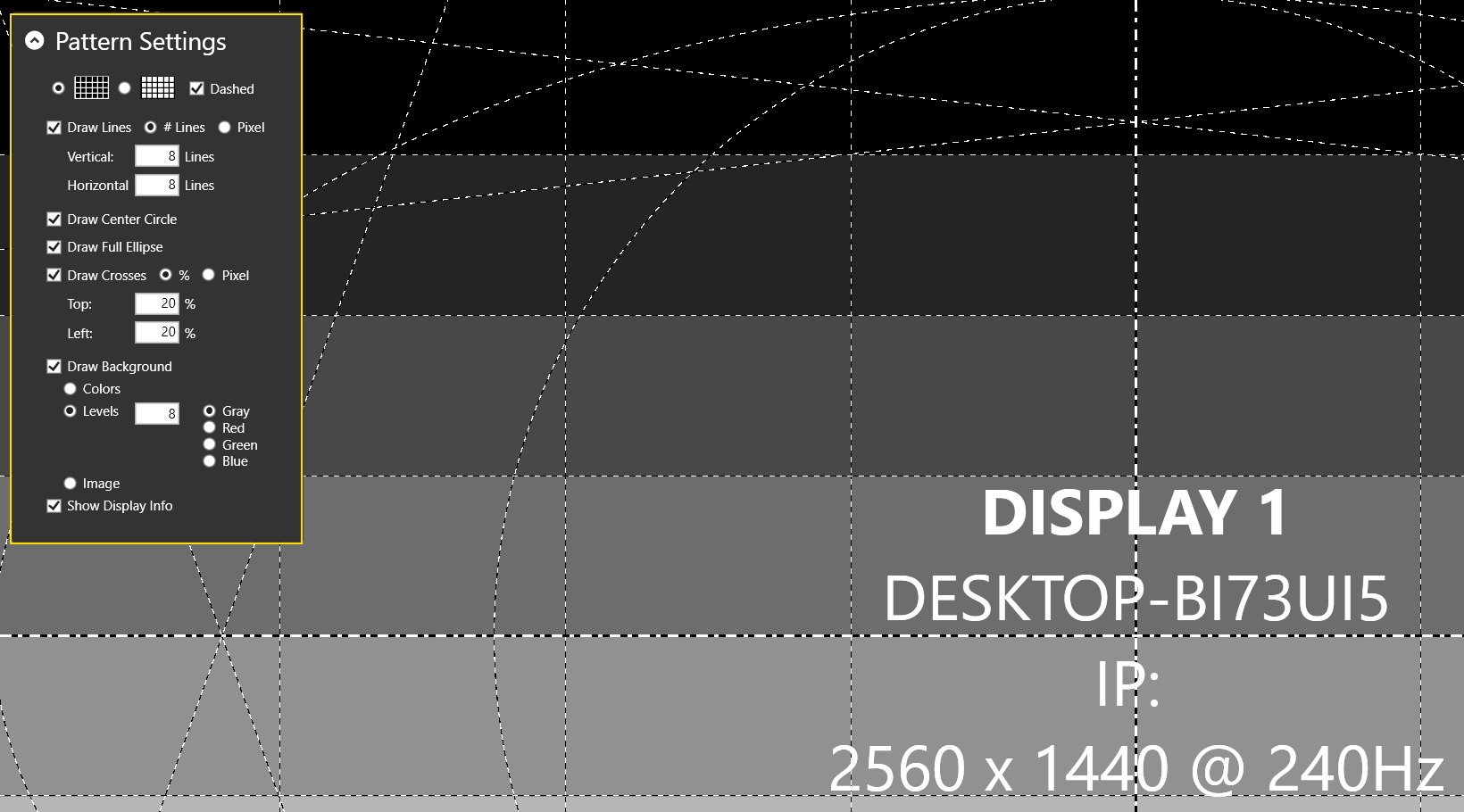
The Displays tab in PIXERA HUB gives you tools to set up and fix your monitors. You can use the Alignment Tool to position your screens correctly, set a Black Backgroundr, or use Reset Displays to clear Windows memory and fix screen issues.

Alignment Tool
The Alignment Tool creates a test pattern on your displays that is full customizable:
NVIDIA Settings
The NVIDIA Settings tab in PIXERA HUB lets you manage display outputs, load and export EDIDs, set up frame synchronization (Local, Framelock, Genlock), and select output resolutions. It also shows status information for connected monitors and sync signals to help keep all screens running together.
More information: PIXERA Hub NVIDIA Settings
License
The License section will display all the licenses found on the system in the “check” folder. It will display its serial number, status, and allow deleting and updating of the license in this section.

Fan Control
Fan Control lets you set your fan speed to either Factory, Silent, Maximum, or Custom. This menu shows up at the bottom of your Manage tab whenever you enable it, this only works with PIXERA hardware:

Diagnostics
The Diagnostic section allows you to install and use VNC for remoting into connected servers. It also allows you select from a list of Logs that can be bundled for sending to a Support Ticket, allowing quicker resolutions of bugs that may be found in the software.

Identify
PIXERA hardware offers the option of identifying servers in the hub in case they are installed in a rack, and it is unclear which one is which.
When the identify function is triggered in the Pixera hub, the backlight on the rear of the server starts flashing.
This feature is not available for all hardware models.

PIXERA 26.1 R 44 | 16. September 2026 | C.L. & S.H.