 Contact Us



The On-Screen Statistics is a tool to analyze the render Output. It displays useful information about the status and the settings of each Output.
Furthermore, it displays Scan Lines, running from left bottom corner to top right corner, generated by the render engine itself. These allow you to analyze if either the content or the render engine is having the visual issue, such as stuttering.
The On-Screen Statistics can be enabled and disabled for assigned Outputs within PIXERA in two ways.
- Using the button in the bottom left corner of Mapping/Live.
- The shortcut Ctrl+9.

The statistics will always overlay the content on your Output.
Warning
Preview Screens in the PIXERA workspace will also show this overlay. These do not represent the same values as the actual Output, due to the Preview Engine being separate from the Output Engine.
You must look at the Outputs themselves to see how they are performing.
Statistic Sections
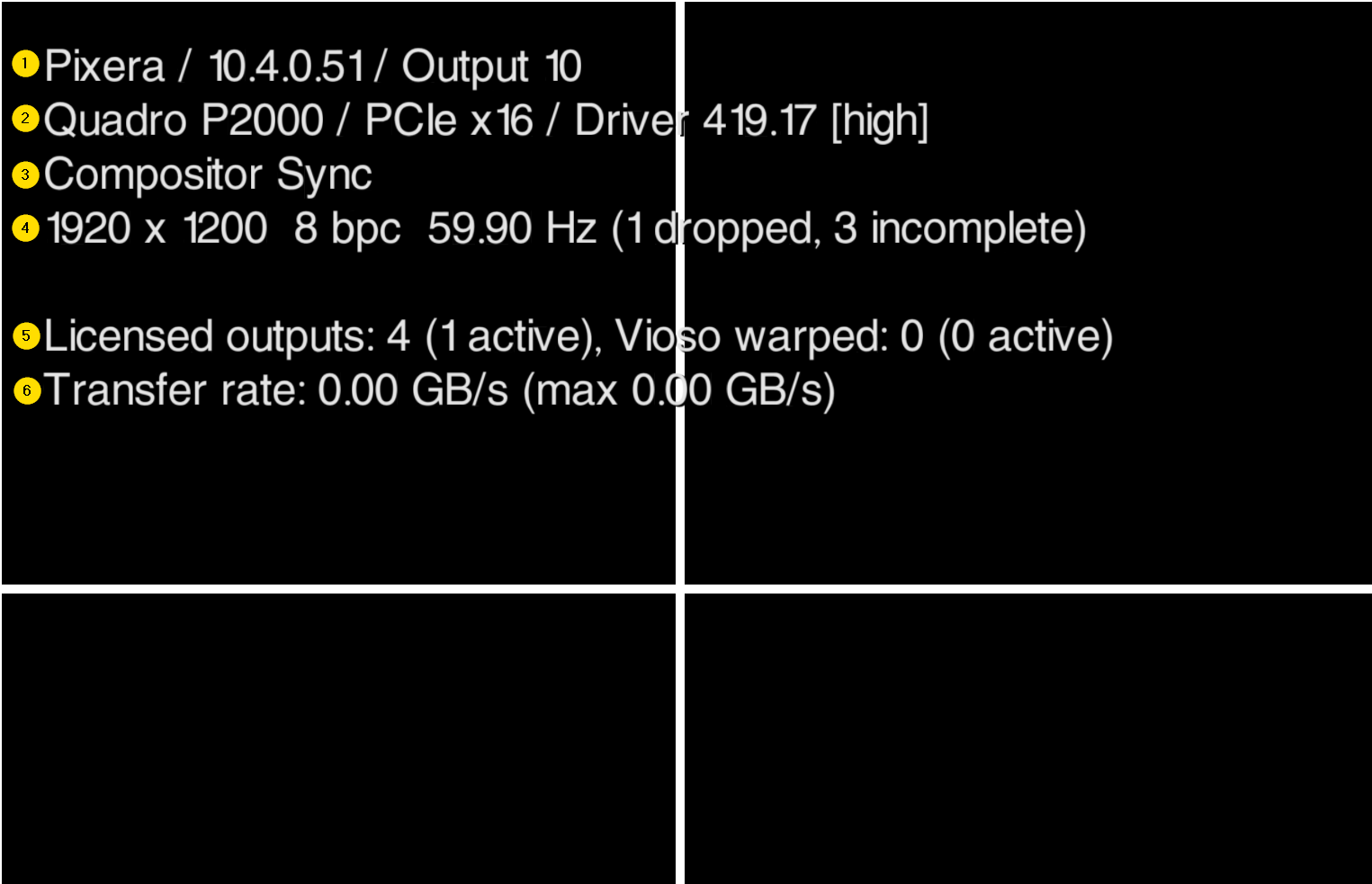
- IP Address and Output Enumeration.
- Graphics Cards, used slot on main board for graphics card, and used graphics card driver.
- Currently used Synchronization
TIP
The data is read on first Output start, it is not rechecked during runtime! So if needing to see updated information, you must close and reopen the Outputs.
- Compositor Sync: Synchronization via Windows10 DWM.
- Swap Group Sync: Synchronization via Nvidia Quadro Sync.
-
V-Sync: Synchronization via monitor refresh rate.
- Output Settings: Resolution, Bit Depth, Refresh Rate.
-
dropped frames: Frames that the render engine could not load into the back buffer.
-
incomplete frames: Frames that the render engine could not load completely into the back buffer, because the time to open and load the frame into the back buffer is longer than the frame length.
-
dropped frames: Frames that the render engine could not load into the back buffer.
- Licensed Outputs.
- Current data read rate from the hard drive that this Output takes up.
WARNING
The render engine may run into issues if multiple different refresh rates are being used on one system, especially on the same GPU. So ensuring the same EDID is used on all Outputs will heavily help ensure sync and performance.
On-Screen Statistics for Preview Only
It is possible to enable the On-Screen Settings in the Preview only without activating it on the outputs.
This is usually done to analyze the preview only.
To do so, navigate to Settings/General/GUI Rendering and use the button Toggle On-Screen Statistics in Preview.

Scan Line Effect
The Scan Lines Effect allows you to place Scan Lines over an existing video in PIXERA, which run from bottom left to top right.
These scan lines make it easy to determine whether tearing (asynchrony) is occurring.

Reference the Scan Line Effect Article for more information on its usage.
Pixera 26.1 R 39 | 19 August 2026 | FE, JB, CL