 Contact Us


This article explains how to install the license on the system, and where it must be placed in order for PIXERA to recognize it.
You may also be interested in:
Update from 1.8 to 2.0 or higher
Tip
Make sure to update Pixera Hub first to see all latest release versions.
Where do I get my license key?
In the latest release of PIXERA hub (2.15.0 and upward), the dongle key can be installed automatically when it is detected in the system.
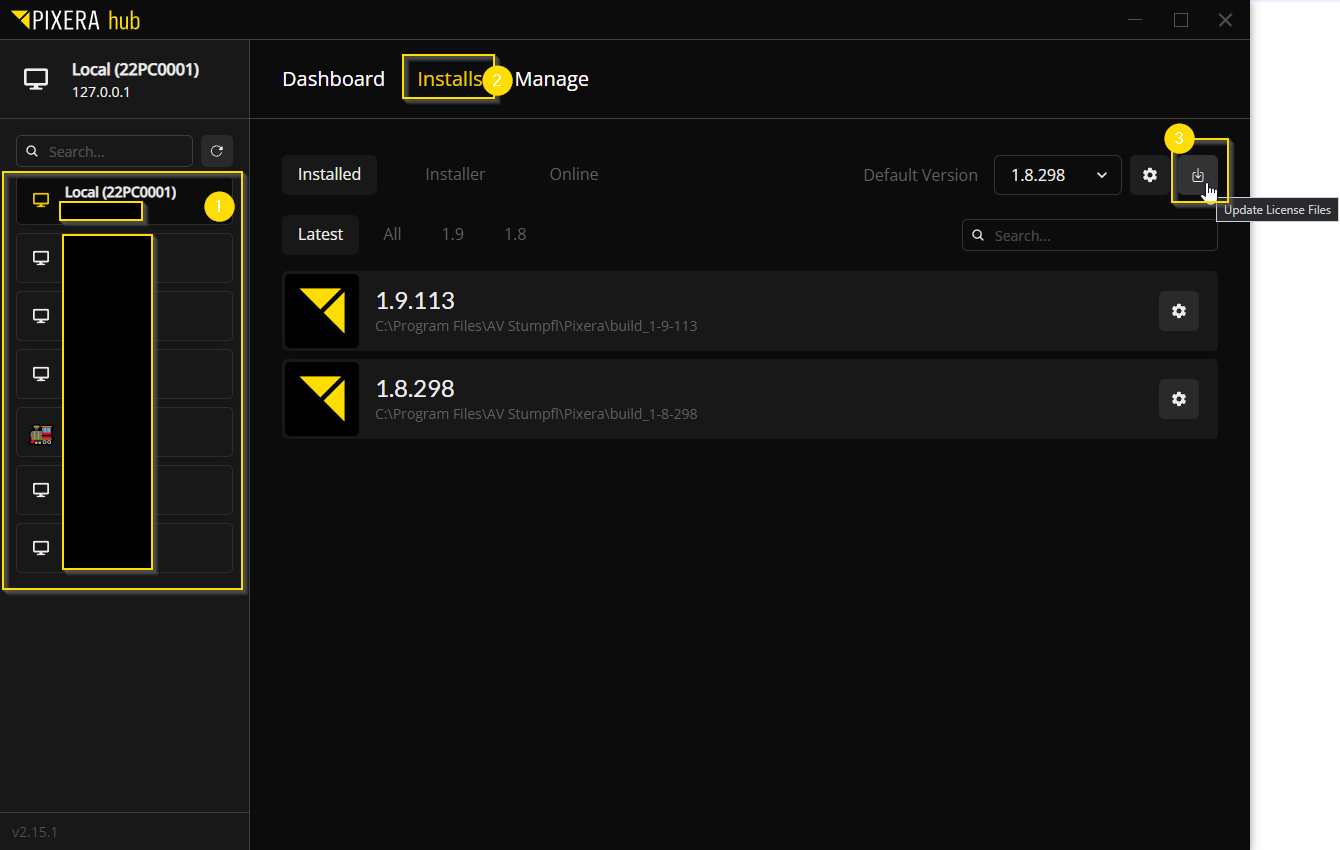
- Select the system where you want to download your license (currently, it is not possible to distribute license files to other devices than local, the target system needs to have web connection in order for this to work)
- Check if selected system has web access - web access is mandatory since this is an online database
- Go to Installs
- Click “Update License Files”
- The Hub 2.25.2 will download all lic Versions for your Dongle
The license key can also be found on the invoice for the dongle/server.
Alternatively, you can ask support for it:
support@avstumpfl.freshdesk.com
Where is the license saved?
This is the folder where the license gets stored and where Pixera is searching for it:C:\ProgramData\AV Stumpfl\Pixera\check
If you enter the key in Pixera or Presense, the key file will be generated and stored here.
Version Compatibility
r0 Licenses
Pixera 1.4.xxx to 1.6.58
Info
Pixera version 1.6.58 is able to convert R0 licenses into R2 licenses.
e.g. 0000_0001_9291.lic
r2 Licenses
Pixera 1.6.58 to Pixera 1.8.337
Pixera 1.8. ≥ 337 is able to read both r2 and r5
e.g. 0000_0001_9291_r2.lic
r5 Licenses
Pixera 1.8. ≥ 337 is able to read both r2 and r5
Pixera 2.0.0 to Pixera 2.0.xxx
e.g. 0000_0001_9291_r5.lic
SN Licenses
Pixera 25.2 R3 < is able to read the new SN (UAP) lics
e.g.SN000000019291.lic
Pixera 25.1 INTER 30 | 17. March.2025