 Contact Us


Warning
The PIXERA Connect Plugin is required for the following features in this article to work. Follow this article to install and learn about the Connect Plugin: PIXERA Connect (Unreal Engine Plugin).
We offer the possibility to send Variable values from Unreal to a PIXERA Timeline. From there, the values can be watched or used in Control.
Setup Unreal
First, you will need to have the PIXERA Connect Plugin installed and restart the Unreal Engine for the following Actions to show up in Blueprints.

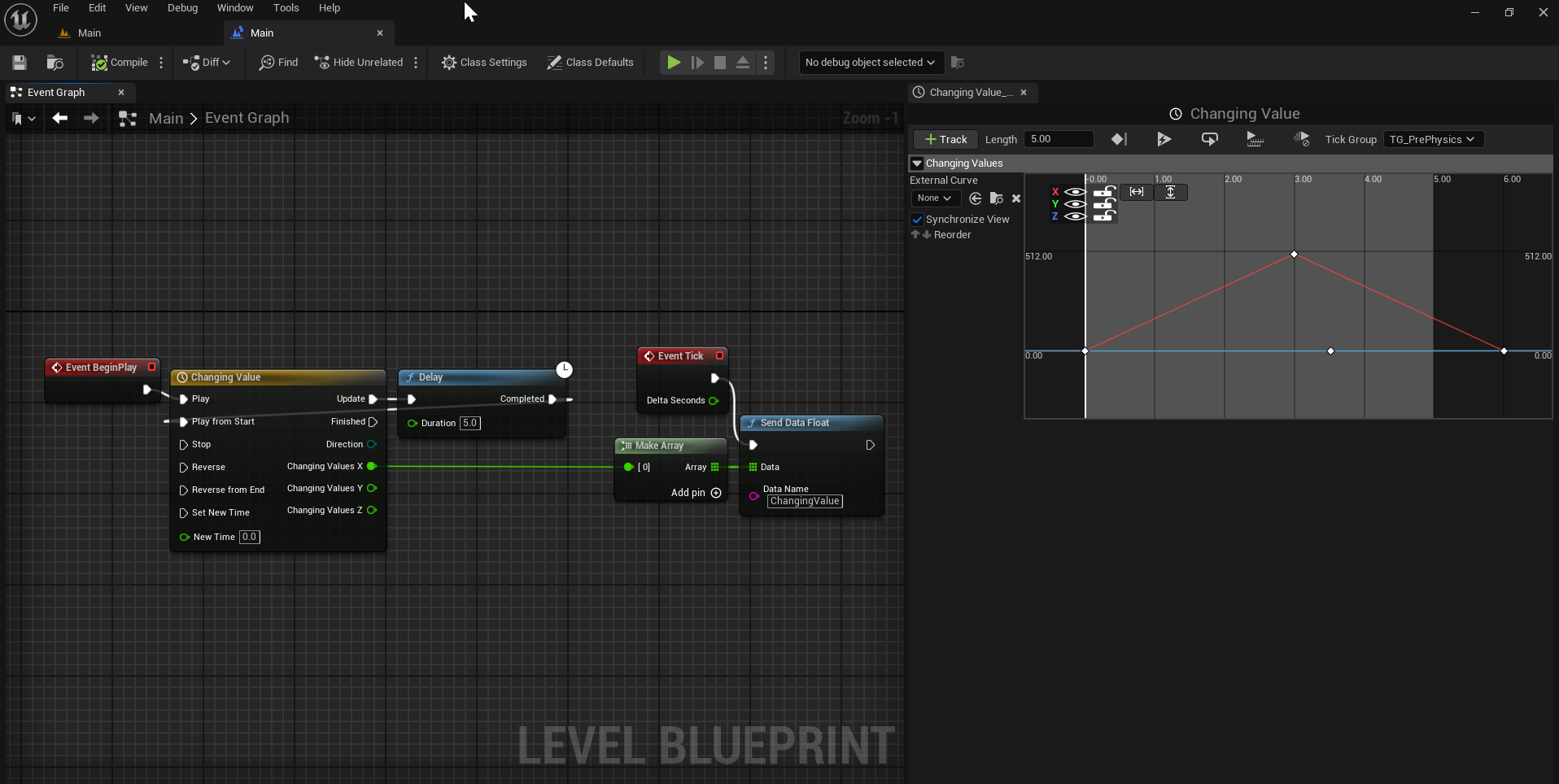
To enable access, the variables must be specified via the respective “Send Data” Action in the Unreal Level's Level Blueprint.
Color, Float, Int, Vector, and Vector 2D are possible data types that can be sent; these will be sent in an array format.

In this example, we are using a timeline to create a linear increasing and decreasing value from 0 to 500.
For this example, “Event Begin Play” is connected to the Timeline to start it, using an attached Delay. From there, the “Event Tick” must be connected to the “Send Data” Action you want to use. In this case, we use the “Send Data Float” Action. Now every frame, the Blueprint will send a float that PIXERA can access.
Next, set the Data Name, which will be the one that PIXERA will display as well. Connect the values you want to send to the Data section of the Action. In this case, the “Make Array” action is used, and only one value is placed inside.
Setup PIXERA
In PIXERA, same as for sending data, you have to create an Unreal Variable Data Layer. Only this time, the properties of the layer will update according to the Data that your Unreal project sends.
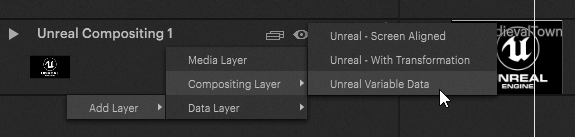
Select the “Unreal Project” file in the drop-down, add the variables you would like to receive via the + button, and name them exactly the same way as you did in the Unreal Level Blueprint. Set the “Kind” field according to the type of your variable, and adjust the “Count entries” field when you are working with arrays.

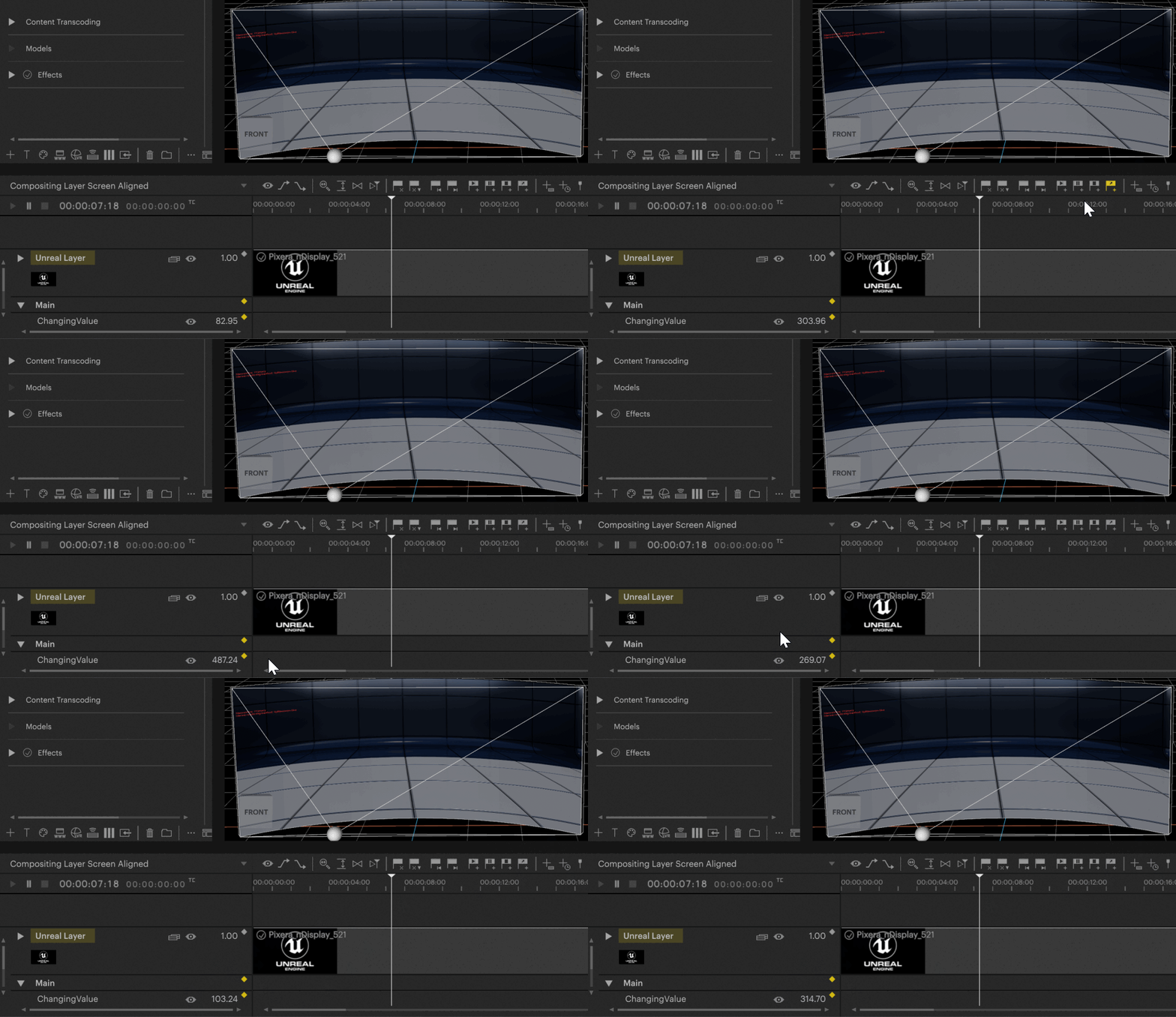
Make sure to rename the created Layer to the level name of your Unreal world. Once you run the Unreal Project, you should see the value changing on the Timeline based on what you set in the Unreal Blueprint.
Multi-Value Setup
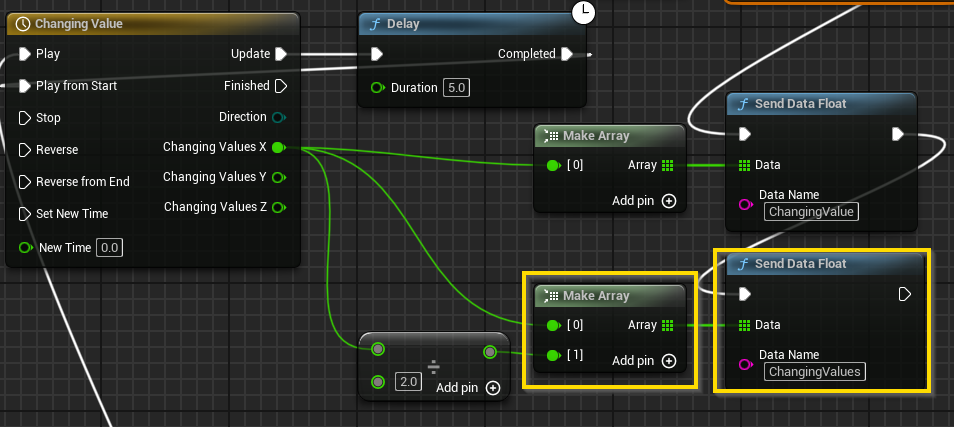
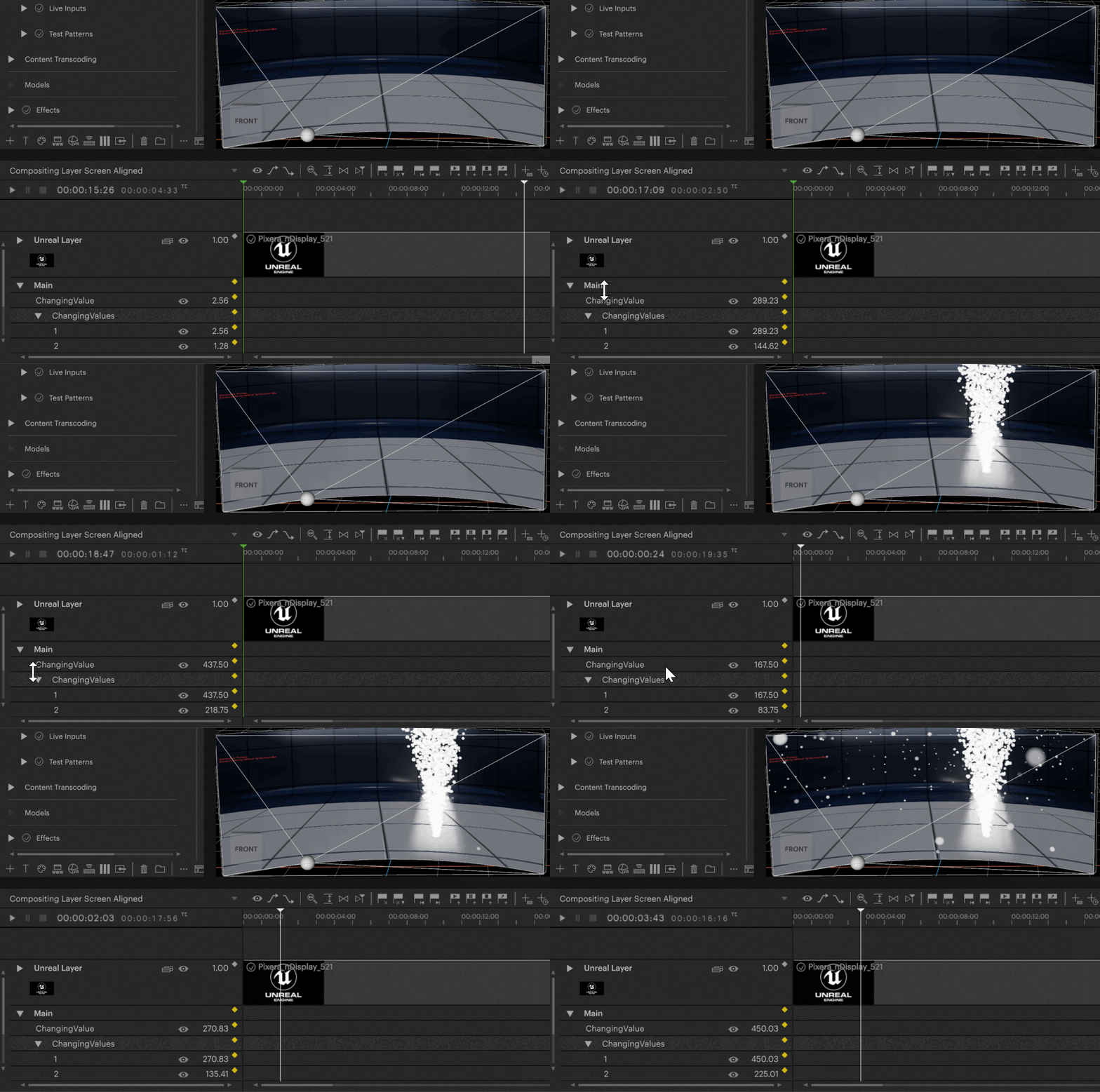
Here is a workflow example involving multiple values instead of just one. We add several rows in the creation dialog and adjust “Count entries” for any arrays.

Continue With PIXERA Connect
The PIXERA Connect Plugin allows a variety of dynamic workflows with a running Unreal Project. Follow the links below to learn more:
PIXERA Connect, an Unreal Plugin - General Usage
PIXERA Connect, an Unreal Plugin - Trigger Events in Unreal from PIXERA
PIXERA Connect, an Unreal Plugin - Unreal Level Streaming and Loading In Pixera
PIXERA Connect, an Unreal Plugin - Send Variable Data from PIXERA to Unreal
PIXERA Connect, an Unreal Plugin - Send Variable Data from Unreal to PIXERA
PIXERA 2.0.65 | 10 July 2024 | CL